
The concepts behind the use cases, in the order they build.
Put an agent on a schedule
You’ve built agents that work when you ask. Now you’ll set one job to run automatically, whether or not you’re at your desk.
- Take a job you already run by hand, put it on a schedule, and test it once yourself.
- Repeatable work can happen on its own, without waiting for you to start it.
- A scheduled routine that runs on the cadence you choose and saves its results back to your project.
- About 20 minutes.
- Claude Desktop or Cursor connected to your project, with the BlueRock toolkit installed and
/bluerock:checkpassing. You’ll also need the private GitHub backup you created in Save your work. Scheduled routines use that copy when they run while you’re away.
Three ways to automate your work
So far, your agents have started working when you tell them to. Claude Code also lets you set work to repeat, run on a schedule, or keep going until something happens.
There are three ways to do it:
- 1/loopRepeats work while your current chat is open.
- 2/scheduleRuns work on a schedule in the cloud, even when you’re away.
- 3/goalKeeps working until a condition you set becomes true.
The agent and its instructions can stay the same. What changes is when the work starts and how long it keeps going.
In this session, you’ll use /schedule to turn a job you already do into a routine that can run without you. Next, you’ll create your first scheduled routine.
What you’ll do in Claude Code
We recommend doing the hands-on work in Claude Code, where you’ll be guided step by step. Prefer to follow along here? Use the instructions below. You’ll define the job, choose when it runs, decide where the result goes, and test it before letting it run on its own.
- 1
Start the session.
Paste this into Claude Code:
teach me Session 7
You’ll see: Claude Code loads Session 7 and checks that your project is backed up to GitHub before you continue. (You can also type
/bluerock:learnto pick up wherever you left off.) - 2
Choose a job to automate.
Follow Claude Code’s prompts to choose a job you already repeat. Describe what you want done and where you want the result saved. Be specific about the destination: for example,
briefs/<today’s date>.mdis better than “save it to my project.”You’ll see: a clear instruction that tells your agent both what to do and where its work should go.
- 3
Check how it works without you.
Claude Code will show you what your agent does if it needs information and you aren’t there to answer. Review this before moving on.
You’ll see: instructions telling the agent not to stop and ask you a question or invent information when nobody is there.
- 4
Create the schedule.
Follow the prompts to choose when the routine should run. You can use plain language such as “weekdays,” “weekly,” or “tomorrow at 9am.” The first time, approve the browser authorization when prompted.
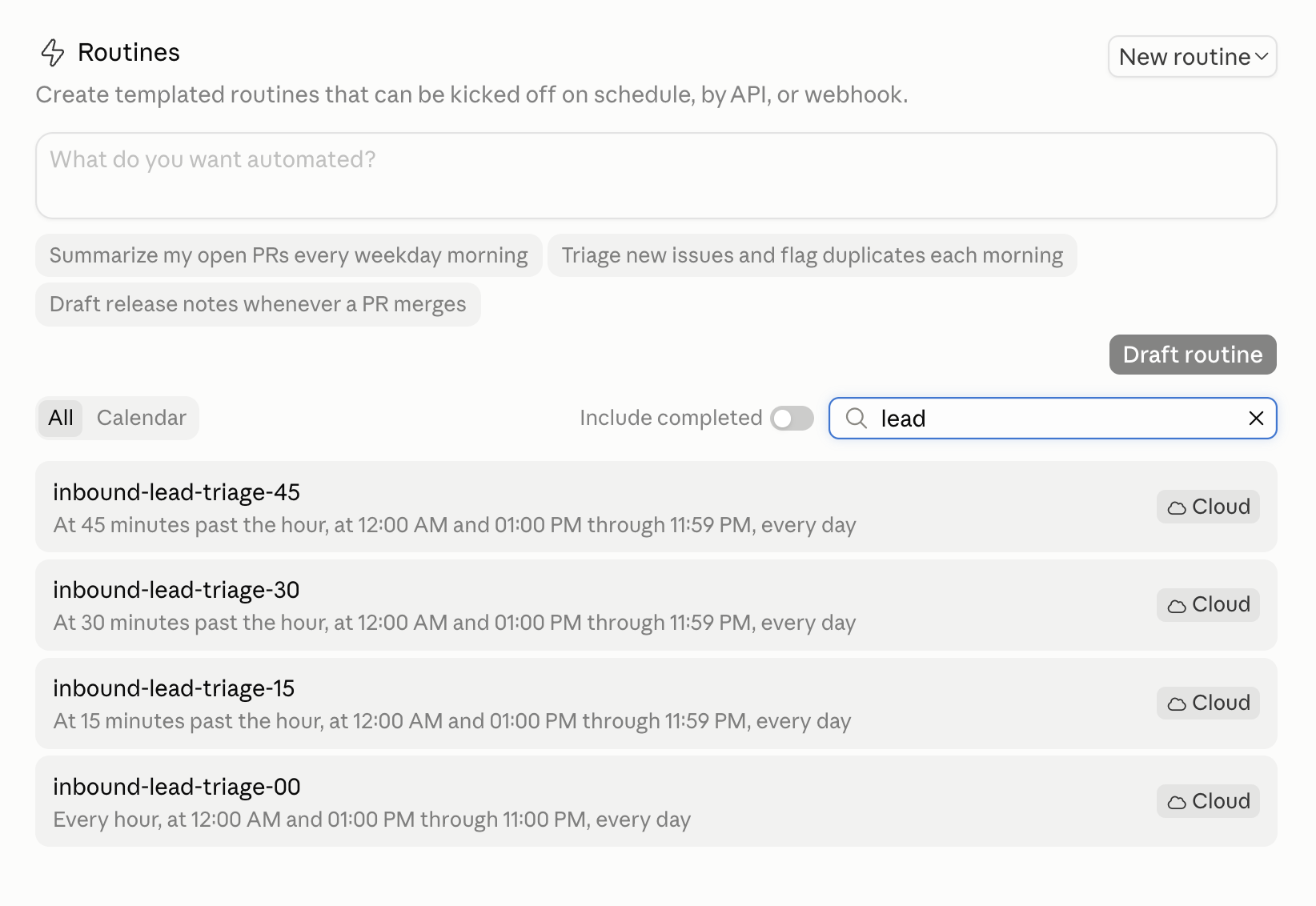
You’ll see: your new routine, including its schedule and next run time, on your Routines page — open the Code view in Claude Desktop and click Routines in the sidebar.
- 5
Test it once.
Run the routine manually before trusting the schedule. Then open the result and make sure it did what you expected.
You’ll see: the routine run and its output saved where you told it to go. The file won’t be in your project yet — the routine backed it up to GitHub, so ask Claude Code to bring down the latest first.
- 6
Save a checkpoint.
When you’re finished, type
/bluerock:wrap-up. Review what Claude Code is about to save, then approve it.You’ll see: a checkpoint of your work, including the routine you just created — and, because your project is backed up to GitHub, the offer to back this checkpoint up too.
Recap
You took a job you normally start yourself and turned it into a routine that can run on a schedule. You told it what to do, where to save the result, and what to do when you aren’t there to answer questions. Then you tested it once before letting it run on its own.
Your agents don’t need you to start every job. A routine can run on the schedule you choose, do the work while you’re away, and save the result back to your project where you can find it.
You’ve moved from running work yourself to setting work in motion automatically.
Practice
Let your routine run on its own at least twice. Each time, look at what it produced and ask a simple question: is this useful enough to keep running?
If not, change it. Tighten the instruction, adjust the schedule, change where the result lands, or stop the routine altogether. The goal isn’t just to automate work. It’s to automate work that is worth doing.
- Let your routine run on its own at least twice and review the result each time.
- Make at least one improvement based on what you learn: change the instruction, timing, or output.
- Pick one larger workflow you’d like to automate next. Write down what should happen, what it should produce, and what you would no longer need to do by hand. Session 8 starts there.
What’s next
Run your system
Your agents have a calendar now. Next, you'll read back everything you built as one system, and name the next thing worth building.
Start Session 8Build with it
Every use case is a team, a skill, or a schedule like the ones this path teaches. Pick one and put it to work.
Pick a use caseScheduled agents unlock scale.
Post your routine, and see what other builders scheduled. Theirs will give you ideas for your next one.
Learn more
Want to understand a little more about what just happened? Open these for a quick look behind the scenes.
Where can a scheduled result actually land?
When you run an agent yourself, the answer can simply come back to you in the conversation. A scheduled routine is different: it may run while you’re away, so it needs to know where its work should go.
There are three common destinations:
- The run transcript. Every run creates a record on your Routines page. It’s useful for seeing what happened and troubleshooting a run, but you have to go there to find it.
- A file in your project. The routine can save its result as a file in a specific folder. This is often the most useful option because the output becomes part of your project, where you and other agents can find and use it later.
- A message where you already work. If your routine has access to a connected tool, it can send its result somewhere else, such as a messaging or collaboration system. The instruction needs to explicitly tell the agent where to send it.
The important part is to define the destination when you create the routine. “Create my morning brief” tells the agent what to do. “Create my morning brief and save it to briefs/<today’s date>.md” tells it what to do and where the result should live.
When would I use the other two commands?
/loop repeats a prompt inside the chat you have open (“every five minutes, check X”), on your own machine, and it stops when you close the chat. That is the right shape for something you want to watch. /goal keeps working until a condition you named is true rather than until a time; file the name away, you don’t need it yet. Both are Claude Code’s own commands, which is why they have no bluerock: in front of them.
One thing worth saying plainly: Routines is the newest of the three and its surface is still settling, so the buttons may move. What you are learning is the durable shape: a standing instruction, a plain-language schedule, and a page where scheduled jobs live. That part holds even when the screen changes.
What did I authorize, and can I take it back?
The one-time GitHub grant is bounded the way everything else here is bounded: the routine does only what its instruction says, and writes only where the instruction names. Treat the decision the way you treat an agent’s tools line: you are choosing what the cloud may touch. You can revoke it at any time at GitHub → Settings → Applications → Authorized OAuth Apps.
One design note worth noticing while you are here: your instruction told the routine to save the result and back it up. The specialist agent doing the work was never asked to, and its own permissions are exactly what they were yesterday. You don’t loosen a specialist’s tools line because the trigger changed, and that is the habit that keeps a bench safe as it grows.
The AI and building terms these sessions use are collected in the glossary.