
Reset your workspace
Delete your BlueRock Cloud AI Workspace and its host, spin up new ones, and reconnect the BlueRock Connector. Use this when your workspace stops working and troubleshooting has not fixed it.
- Deletes your workspace and its host, spins up new ones, and reconnects the BlueRock Connector.
- Your workspace has stopped working and troubleshooting has not fixed it.
- Everything in the workspace, unless it is already backed up to GitHub. Your Claude Artifacts are not affected.
- Access to console.bluerock.io, and the BlueRock Connector on your computer.
Resetting deletes everything in your workspace. You will lose your agentic project and everything in it: your agents, your skills, the files in my-work/, and the memory files your agent uses to understand you and your work. This cannot be undone.
Your Claude Artifacts are not affected. Scorecards, messaging docs, and anything else that shipped as an Artifact lives in Claude and stays there.
If you have not set up GitHub yet, your work has no backup. Set up GitHub backup if you can still open your workspace. If you cannot open it, your unsaved work will be lost when you reset.
Can you still open your workspace?
Check this before you continue.
If your workspace opens, save your work first. A failed BlueRock Builder Toolkit update or a broken tool often leaves the workspace itself running, and anything you push now survives the reset.
- Open your workspace in your AI tool.
- Follow Set up GitHub backup through to the push.
- Return here and reset.
If your workspace does not open, continue below. Anything you have not already pushed to GitHub will be lost.
Reset your workspace
- Go to console.bluerock.io and log in.
- Click on Workspaces → Sandboxes, then click your sandbox.
- Click the delete (trash can) button to remove the sandbox.
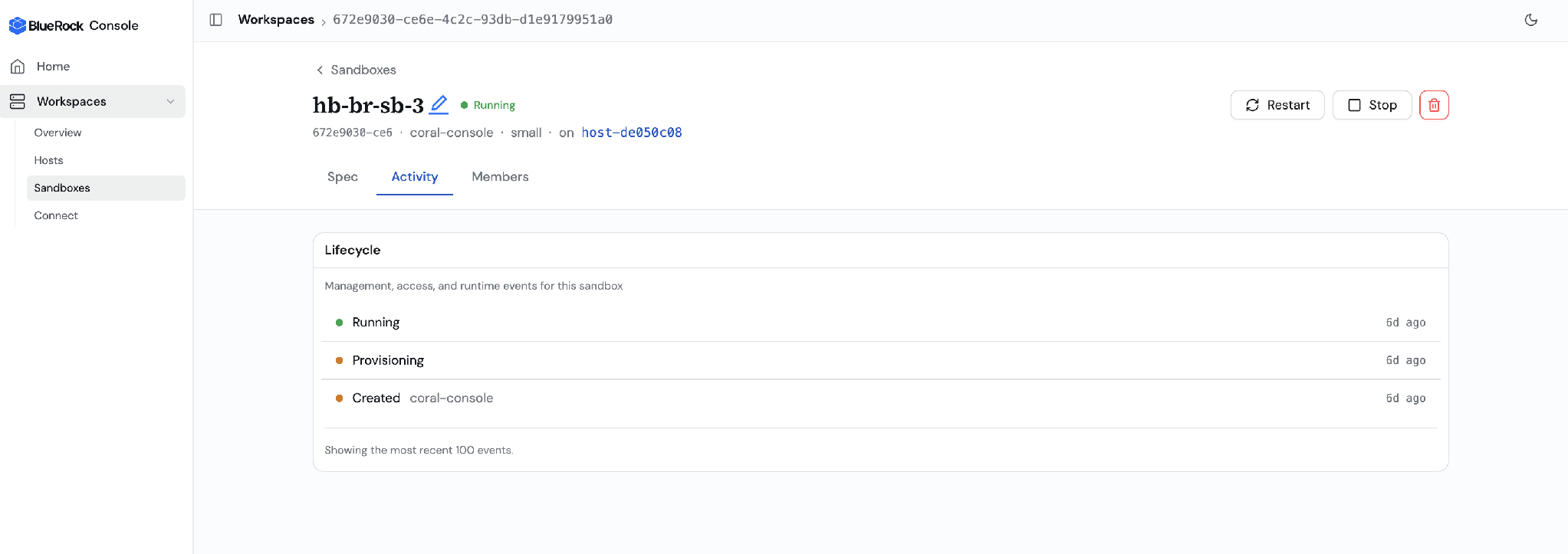
The sandbox detail page. The delete icon is in the top-right corner next to Restart and Stop. - Click on Hosts in the left-hand navigation pane.
- Click the host tile, then click Decommission.
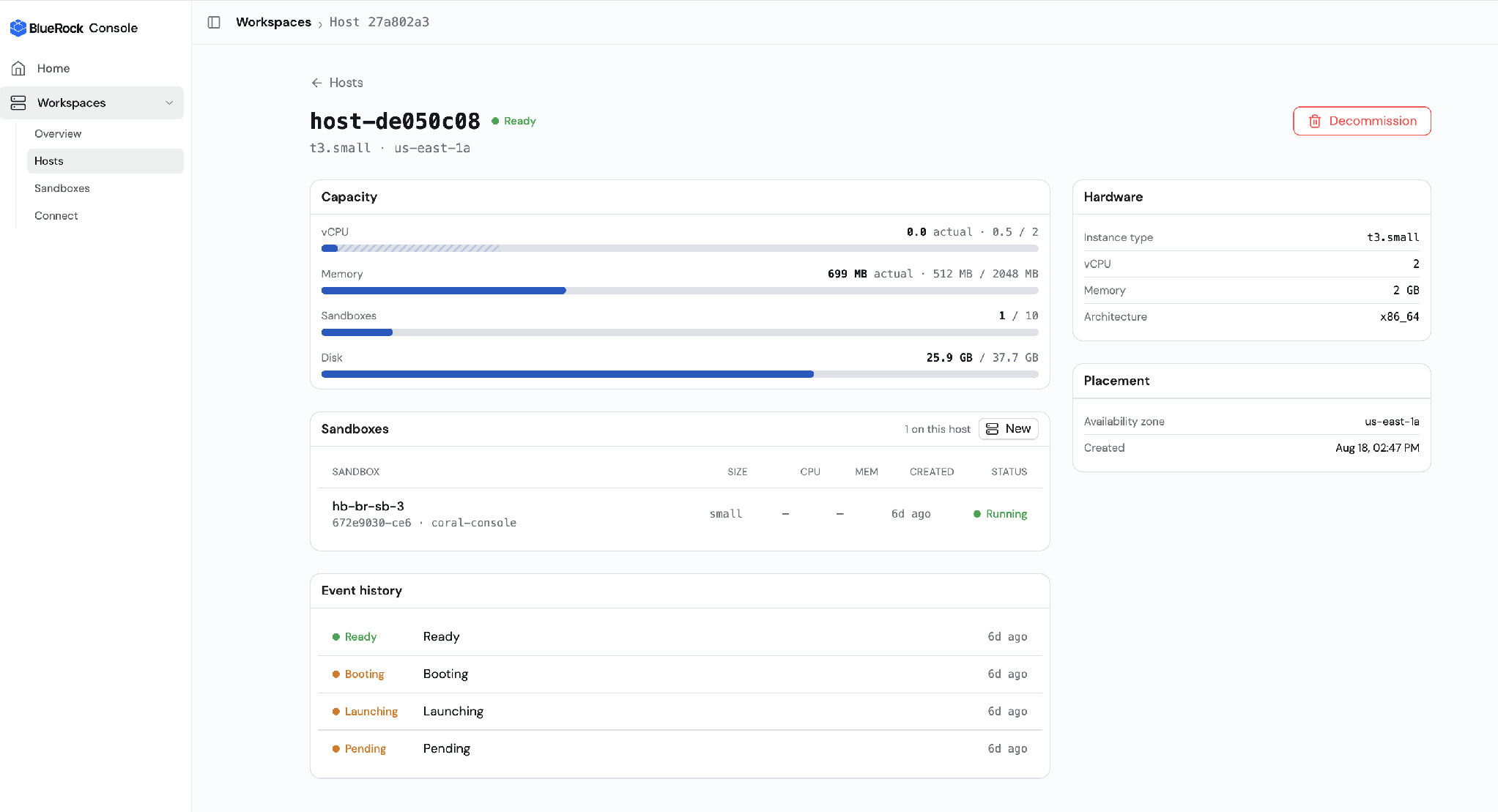
The host detail page. The Decommission button is in the top-right corner. - Wait for the decommission process to complete.
- Add a new host (“spin up” a new host).
- Add a new sandbox (“spin up” a new sandbox). Use the builder-workload template. It is selected by default, and it is what puts your project folder,
my-workspace, and the BlueRock Builder Toolkit into your workspace for you. - Once the sandbox is up, copy the Enrollment URL from console.bluerock.io. Your new sandbox has a different Enrollment URL each time, so copy the fresh one now.
- Go to the BlueRock Connector on your laptop or desktop and click RESET.
- Paste the Enrollment URL you copied to complete the reconnection.
Set up backup on your new workspace
Do this before you rebuild anything.
Your new workspace has no backup. Setting it up now takes a few minutes and means a future reset costs you nothing.
If you already saved to GitHub
Open your new workspace and look for a my-workspace folder. The builder-workload template puts one there for you.
If it is already there, do not follow the steps below yet. Cloning on top of an existing project folder is not what you want, and the right move depends on how your workspace was created. Ask in the Builder Community and we will get you to your work.
If there is no my-workspace folder, the steps below bring your project back from GitHub.
Your project is on GitHub and you can bring it back.
- In your new workspace, open your AI tool.
- Run
gh auth loginand follow the browser sign-in. - Clone your project from GitHub into the new workspace.
Your files, agents, and memory files return as of your last push. Anything you changed after that last push is not in the repository and does not come back.
If you did not save to GitHub
Your project was stored only in the workspace you deleted, so it is gone.
Cloning my-workspace from GitHub gives you the starting template. If you see a my-workspace repository in GitHub and nothing was ever pushed to it, cloning returns the project as it was when you created it.
Set up backup on your new workspace before you start rebuilding: Set up GitHub backup.